Creator workflow guide
How to set up Research Hub for a YouTube channel
Give your video planning a research workspace built around a channel's subject matter. Add a reference YouTube channel, choose when TrendyTube should refresh its research, and explore articles and topic clusters as they become available.
Before you begin
Have the reference channel URL ready.
The channel can be a public YouTube channel you want to research; ownership is not required. Check your channel allowance, update schedule and reserved credits before creating the workspace.
Part 01 · Follow the steps
Connect a channel and start researching
Add your reference channel
Open Research Hub, select Add Channel, paste a YouTube channel URL into Channel URL and click Verify. This checks the channel details and displays a preview so you can confirm that the URL is correct. Select Continue to Schedule once the channel name and image match what you intended.
No YouTube channel ownership verification is required. The Verify button checks the entered channel information; it does not ask you to prove ownership or connect the channel to your YouTube account. Research Hub uses the selected channel's content to organize relevant research fields, articles and video ideas.
Choose your refresh schedule
Under Set the Refresh Schedule, choose when TrendyTube should run the channel's research. Set the Timezone, then review the Upcoming runs preview to confirm the exact scheduled hours. The available frequencies and intervals depend on your plan.
What does the schedule change? It controls when TrendyTube looks for updated research on the channel's selected fields, allowing new article and cluster recommendations to appear over time. Choose a more frequent schedule for time-sensitive subjects and a slower one when your channel focuses on evergreen topics; you can revise it later in Settings.
Choose a refresh frequency
Weekly
Choose the weekday and run time for a regular weekly research refresh.
Daily
Select one daily run time, useful when you want new coverage reviewed each day.
Hourly
Select an available repeating interval for faster-moving topics. Set how the hours should be distributed below.
Hourly timing options
Auto-spaced
Choose the first run time and interval; TrendyTube spaces future runs automatically.
Choose hours
Specify the daily hours you want the refresh to run.
Review the cost and create the channel
Check the displayed channel creation cost, available credits and enabled-field estimate. The reserved credits notice covers future scheduled runs and is separate from the immediate creation cost; the reservation may change once setup determines the active field count. If the schedule exceeds available credits, choose a less frequent schedule or longer interval and review the updated cost. Select Create Channel once the settings suit you.
How credits work: creation is the immediate cost of setting up the research channel; the reservation protects credits for its scheduled runs within the billing period. More active fields or more frequent refreshes can increase the reserved amount. You can revisit the channel's Settings later to change the schedule and see a new reservation preview.
Let the initial setup finish
Return to Research Hub after creating the channel. A card marked Processing means the initial research is being prepared. Open the channel once it is ready and select Overview to review its ranked fields.
The workspace navigation separates research, video ideas, saved sources, scripts and scheduling.
Where to work inside Research Hub
Overview
Browse the researched fields and their article and cluster results.
Ideas
Open and search the video's generated idea proposals.
Saved
Revisit the articles, clusters and ideas you chose to preserve.
Script Builder
Select source articles, clusters or ideas for a new script.
Scripts
Open completed scripts and their title or description history.
Settings
Review or change the channel's refresh schedule and timing.
Adjust your field preferences
In Overview, click Edit Fields Preference. Choose the active fields that best fit the channel's niche, within the allowance shown for the account. Drag the fields into priority order, putting the topic you most want to cover at rank 1 and other interests below it.
The order influences which research TrendyTube emphasizes in automatic idea generation. For example, if science is your main channel niche and technology a supporting interest, placing science at rank 1 makes idea generation prioritize its research over the lower-ranked field. Review any reserved-credit change when adding or removing fields, then click Save Changes.
Example: ranked research fields
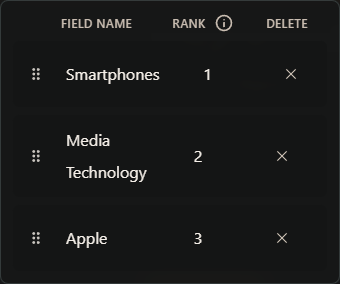
Drag a field to change its rank. This cropped example shows three selected fields; your channel can have different fields and limits. Explore the research before choosing an idea
From Overview, select the research field you want to cover in your next video. TrendyTube has already prepared relevant articles and related topic clusters for that field. Open the source articles to read details, and use Save to keep useful research in your Saved library before older unsaved results rotate out.
What should you look for? Compare the top-ranked topic clusters to see which subjects have useful coverage, then open the articles behind any promising cluster to understand the details you could explain in a video. Saving protects a source you want to use later in Script Builder.
Choose the display layout and sorting method that makes it easiest to review the available material.
Browse the research
Cluster
Explore groups of related articles around a potential video topic.
Article
Read individual recommended articles and open their original sources.
Choose a layout
Cards
Scan stories and their preview images quickly.
Magazine
Read larger story previews while browsing.
List
View compact rows when comparing many results.
Choose a sort order
Rank
Show articles or clusters by channel relevance and potential as a future video topic, with rank 1 as the strongest recommendation.
Score
Surface stronger popularity or reader-interest signals when scores are available. Some articles do not have a Score; Score sorting is also unavailable in custom fields.
Newest
Bring the most recently published research forward.
Oldest
Trace earlier reporting to see how a topic has developed.
Help · Common questions
Common questions
Why can't I add a channel?
Check the Research Hub channel allowance; Add Channel can be hidden when your account is at its limit. A duplicate channel URL may produce a verification error. Check the URL and the message shown.
Will every refresh create new articles and ideas?
The selected frequency governs scheduled research processing, but new material depends on what is available. The channel also displays separate timing information for idea generation. Review status and upcoming-run information for the latest progress.
Create a TrendyTube account
Create an account to begin setting up your Research Hub workspace.
Create a TrendyTube account