Creator workflow guide
How to Do YouTube Keyword Research in TrendyTube
Explore a topic before deciding what to film. TrendyTube's Keyword Search brings matching YouTube videos and optional demand estimates into one workspace, so you can compare existing coverage and find an angle worth investigating.
Before you begin
Choose a topic or phrase to research.
Your search compares matching public YouTube videos. Enable Need Analytics when you also want available demand estimates; the two result types may arrive separately and use different search allowances.
Part 01 · Follow the steps
Step-by-step YouTube keyword research workflow
Start with a specific topic
Start with a subject you are considering for your next YouTube video. Open Keyword Search and use the two inputs below to tell TrendyTube what topic to investigate and which audience location to focus on. The search uses these inputs to find relevant existing videos; if you enable analytics later, it also requests demand information for the chosen geography where available.
Define the topic and audience
Enter keyword… — what you want to research
Type a phrase viewers might search for, such as smartphone food photography. TrendyTube uses it as the search topic to retrieve matching YouTube videos, so you can see what creators already cover and how audiences respond. A specific phrase helps narrow the results to the content you are actually planning; try related variations later to compare angles.
Country — whose audience interests you
Choose the country whose video results and available search-demand signals you want to investigate. For example, choose United States if that is your target audience, even when you live or publish elsewhere. Country selection gives the search geographic context; choose the same country when comparing keyword variations so the results are more comparable.
Set the results you want to compare
Choose how broad and recent your comparison should be before searching. TrendyTube uses these filters to select which matching videos appear in the results, so your chosen count, order and date range affect the competitor examples and metrics you see. For a first look, start with a manageable number of results and expand when the topic needs deeper comparison.
Choose the result order
Relevance
Start with videos that most closely match your keyword. Use this to examine how creators cover the topic.
Upload Date
Bring recent uploads forward. Use this when you want to see new discussions or recently covered angles.
Views
Bring widely watched videos forward. Use this to compare videos with stronger view counts.
Control coverage and recency
Results count — 50 to 600 videos
Choose 50 for a quicker shortlist of examples, or a higher number when you want a wider picture of competing coverage and more data to compare. Larger result sets can take longer to inspect and may include less directly relevant videos.
Date After — focus on a time period
Select an earliest upload date when you want to study recent discussions, such as videos published since a new product launched. Leave it unset when older evergreen coverage also matters. This filters the videos being compared, not the monthly search-demand history.
Decide whether to include demand analytics
Choose whether you only want videos covering the topic or also want an estimated monthly demand trend. The extra analytics panel helps you compare interest in related phrases before choosing a subject. Review the displayed daily search allowance and credit estimate, then select Search.
Video retrieval and demand analysis are separate tasks, so the video table may appear before the demand chart finishes.
Search options
Need Analytics off
Search matching YouTube videos and explore their titles, channels, dates and performance. Uses one daily search from your allowance.
Need Analytics on
Search matching videos and request the additional Search Demand panel with monthly interest figures. Uses two daily searches from your allowance.
Read the matching-video results
The results table shows how other YouTube creators approach the phrase you entered. Start with titles and upload dates to see the angles already covered; then use Columns to show only the metrics that help you compare them. Select a sortable column heading to find useful examples, rather than choosing a topic from one number alone.
Why compare these metrics? Views show how often a video was watched; likes and comments show recorded interactions; Views Per Day puts old and recent uploads on a more comparable timeline; EVR and VSR help you compare engagement and reach relative to video and channel size.
Understand the key columns
Views Per Day
Average views relative to the video's age. Use it to compare videos uploaded at different times.
EVR — Engagement to View Ratio
(likes + comments) ÷ views × 100%. For example, 200 likes and comments on 10,000 views gives 2% EVR.
VSR — Views to Subscribers Ratio
views ÷ channel subscribers. For example, 20,000 views from a 10,000-subscriber channel gives 2.0 VSR.
Views, Likes, Comments and Channel Subscribers
The underlying view and interaction totals, plus the channel's subscriber count when available.
Compare the overview and demand charts
Use the charts to answer two different questions: How are the matching videos performing? and, when Need Analytics is enabled, how is search interest for the keyword developing? These are distinct views.
Total Views adds the views of the videos returned in this search. Engagement summarizes their engagement context. View Trends compares groups of returned videos by upload age (for Views or EVR), which helps you see how recently published videos compare with older groups. Search Demand, when available, shows a separate month-by-month interest series for the keyword; use it to spot recent strength, seasonality or peaks.
View Trends controls
Views
Compare the average view patterns of the returned video groups.
EVR
Compare how engagement varies across those video groups.
Weekly / 1 Month / 3 Months
Change the comparison period for the selected Views or EVR curve.
Search Demand figures
Latest
The latest month shown in the demand series.
Peak
The highest monthly value in the series.
Avg Monthly
The average monthly value across the available series.
Video coverage
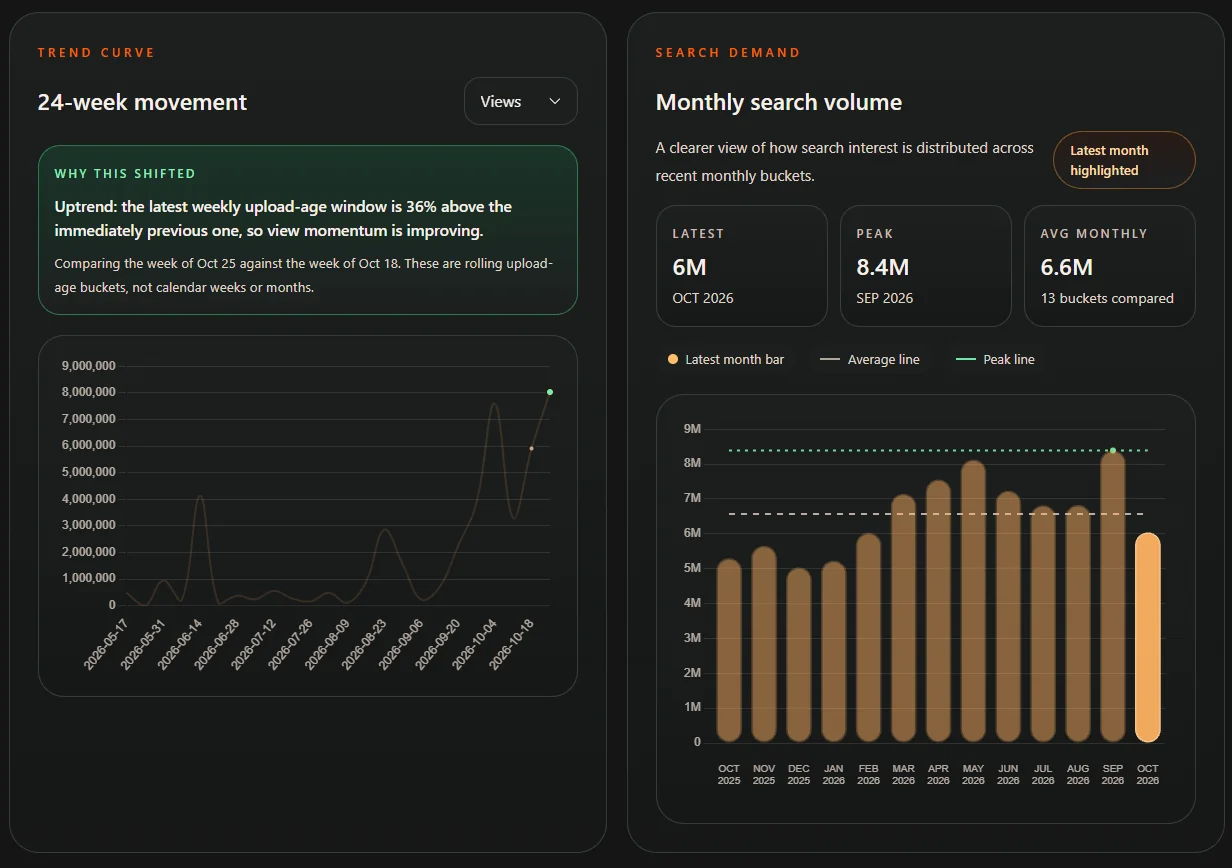
Compares videos by upload age.
Estimated demand
Estimated search interest, not exact YouTube searches.
Saved AI / United States example from October 2026. Turn the research into a useful next step
Now use your results to decide whether the keyword deserves a video. Check which titles and formats are already common, compare whether viewers engage with the results, and look for an explanation, demonstration or perspective that your channel can add. When monthly demand is available, compare the latest month with the average and peak rather than judging the topic by a single spike.
A useful next action: search one or two related phrases with the same country and filters, then choose the topic with the best combination of audience interest, relevance to your channel and a distinctive video angle.
Reopen or download your research
Use Saved Keywords when you want to return to an earlier research snapshot instead of repeating the same search. Opening it restores the results captured at that time; choose Search again when you need fresh video or demand data.
Use Download HTML to keep or share a readable report of your results, or Download Excel when you want to filter, sort and compare results in a spreadsheet. These downloads preserve the data from that search, so they are useful when you are deciding between video topics later.
Help · Common questions
Common questions
What if videos load but demand data doesn't?
Check whether Need Analytics was enabled and read the Search Demand status. Video and demand data can complete separately; missing demand data does not mean zero demand.
Which sort order should I use for a new video topic?
Use Relevance to compare how creators currently cover the phrase, Upload Date for recent discussions, or Views for popular existing videos. Keep the country, result count and date filter consistent when comparing searches.
Create a TrendyTube account
Create an account, then use this guide to research your next video topic.
Create a TrendyTube account