Creator workflow guide
How to Generate YouTube Scripts from Research in TrendyTube
Turn research you've selected into a script you can prepare for recording. TrendyTube combines chosen ideas, articles or clusters with the tone and structure of the channel's available transcripts, then organizes the draft into sections you can review with its sources.
Before you begin
Prepare your research selections in Research Hub.
Choose a relevant idea, article or cluster from Latest or Saved Sources, then review the source limit and generation credits. Optional titles and descriptions are separate add-ons.
Part 01 · Follow the steps
Build and review your script
Choose the material for your script
In your Research Hub channel, select Script Builder. Choose research from Latest Sources or Saved Sources; within either, you can select Ideas, Articles, and Clusters. You can also begin with Generate Script on an idea detail to bring its research into Script Builder.
You may choose one idea and up to 15 unique underlying articles in a single request. Articles included through clusters and ideas count too; overlapping articles are counted once. Check the selected-items summary and remove any sources that exceed the allowance or don't fit the draft.
Choose sources that support your topic and contribute different useful details. Use Saved Sources for older research you kept.
Where to find your research
Latest Sources
Browse current articles, clusters and generated ideas from the channel's latest research.
Saved Sources
Choose articles, clusters or ideas you deliberately preserved for later use.
What to select
Ideas
Use a generated video idea as the concept for the script. Select at most one idea per request.
Articles
Choose individual reports you want the script to draw from.
Clusters
Include related coverage around a topic; the cluster's linked articles count toward the 15-article limit.
Find research for your script
Latest Sources

Browse the channel's latest research.
Saved Sources
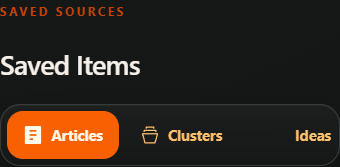
Return to material you saved for later.
Choose from the tabs in either section, then check the selected-items summary and source limits before generating. Set the direction, length and language
Select Generate Script to open the form. Set SCRIPT TITLE, VIDEO LENGTH (MINUTES) (1–120) and VIDEO LANGUAGE. Use Other (type custom) when the desired language is not listed.
What these fields control: Script Title identifies the saved draft, Video Length guides how much narration TrendyTube writes, and Video Language chooses the language of that narration. The target minutes help plan the amount of script content; actual spoken duration will depend on your pace.
If you selected a video idea, decide whether the script should follow its proposed outline.
Use the Idea's Outline?
Yes — recommended
Follow the idea's proposed sequence and key talking points when you like its structure.
No — freeform script
Keep the selected idea and research, but let TrendyTube create a different structure informed by your channel's writing and speaking style.
Decide whether to add titles and descriptions
You can generate only the script, or turn on Generate Titles and/or Generate Descriptions to create upload copy alongside it. These options have their own keyword and writing-style settings, separate from the channel-style context used for the narration.
In manual keyword mode, confirm and select up to five title keywords or ten description keywords. Review Advanced Settings → See More if you want additional controls for title type, structure, length and formality, or description opening, tone and summary. You can generate titles or descriptions again from the saved script later.
Optional upload assets
Generate Titles
Enable this to include YouTube title suggestions with the script.
Generate Descriptions
Enable this to include YouTube description suggestions with the script.
Choose keywords for each optional title or description
Pick Automatic Keywords
Let TrendyTube select related keywords for the title or description.
Pick Manual Keywords
Enter, confirm and check the terms you specifically want to use, within the limit for that asset.
No Keywords
Generate the title or description without selected keywords.
Writing style for each enabled asset
Fresh Ideas
Generate new copy without following examples from past uploads.
Match Style
Select suitable channel title/description examples or add and confirm your own. Select at least one example before generating.
Check the cost and generate
Check the selected source counts, video length, language and optional add-ons. Review the displayed combined credit estimate and available balance, then select Generate Script. The estimate reflects the main narration and any enabled title or description add-ons, so disabling an add-on you don't need lets you request only the content you plan to use.
Open Scripts to follow the request status and return to the completed draft. If you only need narration, leave the optional upload assets off; they can be requested from the saved script later.
Review the sections and their sources
Open the completed script and use Script Outline to navigate its sections. Expand the Script Content sections to read the narration. Reopen Linked Ideas, Linked Articles or Linked Clusters when you want to check a source detail, name or date.
The chapter timings help you plan the video's pacing. Read the narration aloud and refine it before recording.
Explore the script result
Script Outline
Shows the chapter order and available timing markers. Select a section to jump to it.
Script Content
Contains the generated narration organized into expandable sections.
Linked Sources
Open the related ideas, articles and clusters used to build the draft.
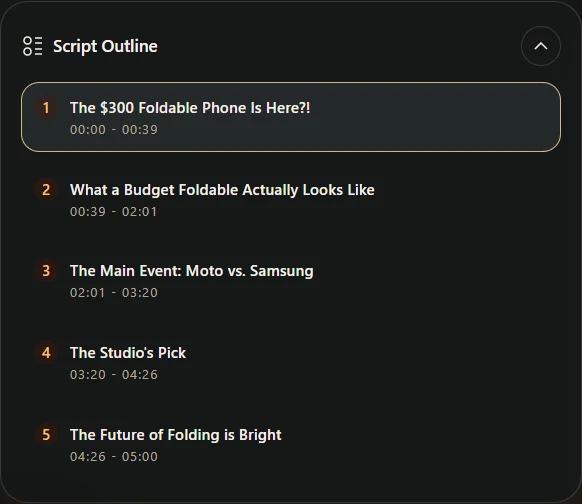
An archived script outline: select a section to review it. Times are planning markers. Copy and refine the draft
Use the copy controls to take the narration into your writing or recording workflow. In the channel's Scripts list, you can reopen earlier drafts. A script's Titles and Descriptions tabs contain previous upload-copy generations and let you request another version with Generate Title or Generate Description.
Script page controls
Copy section
Copy the narration from an individual script section.
Copy all
Copy the full script narration so you can review or adapt it as one continuous draft in your writing or recording workflow.
Edit title
Rename the saved script in TrendyTube. This changes the record title, not the narration body.
Help · Common questions
Common questions
Why can't I generate a script?
Select valid research and enter the required title, length and language. For optional add-ons, manual keywords require confirmed, selected terms, and Match Style requires a selected example. Review the selected-source and credit limits.
Can I use the draft straight away?
Read the draft aloud, check the linked research, revise awkward narration and confirm timing before recording. You control how and when the text is used.
Can I use a video idea without following its outline?
Yes. Select the idea for its concept and linked research, then choose No — freeform script under Use the Idea's Outline? in script setup. TrendyTube will use the selected research and channel-style context to form a new structure.
Create a TrendyTube account
Create an account to begin turning selected research into script drafts.
Create a TrendyTube account