Creator workflow guide
How to Track YouTube Keyword Demand in TrendyTube
Follow changes in estimated search demand for topics your videos cover. In TrendyTube's Video Keywords (Channel SEO Automation) workspace, import the videos you want to track, choose refresh schedules, and compare relevant phrases with those already used in titles and descriptions.
Before you begin
Have your channel URL ready.
You will select which videos to monitor, check the available plan and credit limits, and choose a refresh frequency for each video. The workflow covers the videos you import—not every video on the channel.
Part 01 · Set up
First, add a channel and choose videos
Add and check your channel
In Video Keywords, select Add Channel, paste the Channel URL, and select Verify. Check the channel title and thumbnail in the preview, then choose Continue to Settings.
This channel becomes the workspace in which you choose specific videos to monitor. TrendyTube then analyzes keywords for those imported videos and keeps their demand signals updated on the schedules you select; it does not track every channel upload automatically.
Review the shared channel settings
Under Periodic settings, review the channel's shared run time, weekly day, hourly interval and Timezone. When you add each video, its selected refresh frequency uses these shared values.
Advanced Title Settings and Advanced Description Settings are channel-wide creative defaults for titles and descriptions generated in any video project linked to this channel. You can override them for an individual generation request without changing the defaults. Select Create Channel after checking the schedule and writing settings.
How video refresh frequencies use channel settings
Hourly
Each video's Hourly frequency uses the channel's configured repeating interval and timezone.
Daily
Each video's Daily frequency uses the channel's configured run time and timezone.
Weekly
Each video's Weekly frequency uses the channel's chosen weekday, run time and timezone.
Select videos and start their initial analysis
Open the channel's Videos tab and select Add Videos. Select available video cards and set each selected video's Frequency to an available Hourly, Daily or Weekly option. Check the selection count, plan and duration restrictions, immediate credit cost and reserved-credit preview. Reserved credits cover future keyword runs until the billing reset; this preview assumes 30 keywords per new video and uses its selected frequency. Select Add N Selected, where N is your selected count, and wait for initial processing and keyword analysis to finish before reviewing a project. Coverage follows the videos you import and your account limits.
Why choose videos individually? You might want to prioritize evergreen uploads, videos with promising topics or videos whose titles and descriptions could be improved. Each imported project gets its own tracked keyword set and refresh frequency, so your selection determines which videos receive ongoing analysis.
Part 02 · Review & monitor
Review and schedule your keyword tracking
Open an imported video
In Video Keywords, open your channel, select Videos, and open an imported video project. At the top, inspect its thumbnail, current title and description. The prominent keyword chips show high-scoring phrases with their Best scores: green if the phrase is already present in either the video's title or description, and neutral if it is used in neither.
The same project header shows Views, Likes, Comments, Subscribers, VSR and EVR. VSR (Views-to-Subscriber Ratio) compares a video's views with the channel's subscriber count: views ÷ subscribers. EVR (Engagement-to-View Ratio) compares the combined number of likes and comments with views: (likes + comments) ÷ views × 100%. For example, 180 likes and 20 comments on 10,000 views gives an EVR of 2%. Use these indicators to compare audience response and relative performance across videos. Select Overview to inspect the video's keyword opportunities.
Review the project's keyword list
Under All Project Keywords, you can manage up to 30 keywords per video, subject to the displayed project or plan limit; the counter shows how many slots are used. Compare Short, Medium, Long, and Best opportunity scores, or select a column heading to change sorting. Each score reflects a different demand-comparison period; the Channel SEO Automation overview explains the periods, scoring and Best in detail. Choose Add Keyword if a relevant phrase is missing and space remains.
A newly added phrase may initially show None for its scores, No change and No graph. Adding a keyword does not calculate its history instantly. A later successful scheduled run can update it when keyword tracking and the project schedule are active and enough historical data is available.
To remove several phrases, tick the checkbox beside each one in All Project Keywords, select Delete, and confirm Delete keywords in the confirmation dialog. Those phrases are removed from that project and are no longer updated for it.
Understand Short, Medium, Long and Best scores
Keyword and recent periods

Example scores: Short 44 and Medium 46.
Long, Best and usage
Long and Best both show 53; the phrase appears in the title and description.
A saved example with the keyword hidden. Scores and changes describe the captured period, not a prediction or a YouTube ranking. Compare demand and metadata opportunities
For each Short, Medium, and Long column, the number above the percentage is the opportunity score for that period—not a count of searches. The signed percentage below compares recent estimated demand with the earlier baseline: a green positive change means growth, a red negative change means decline. The standard windows are 3 days versus the previous 14, 7 versus the previous 21, and 30 versus the previous 60, with shorter available comparisons when history is limited. Best surfaces the strongest period score.
The mini-graph visualizes modeled daily demand. Gray (Prev) is the earlier period; green (Recent) highlights a growing recent period and red (Recent) a declining one. The graph helps you see whether a percentage change reflects a sustained pattern or a sudden movement. No graph or None means the corresponding data or score is not yet available; it does not mean zero search demand.
In the Usage column, TITLE and DESCRIPTION are highlighted separately when the keyword appears in that part of the video's existing metadata, and neutral otherwise. The Top Keyword Opportunity Map compares Best scores and distinguishes title-only, description-only, both, or neither. Use the comparisons to prioritize relevant, high-interest keywords when developing titles, descriptions and Shorts.
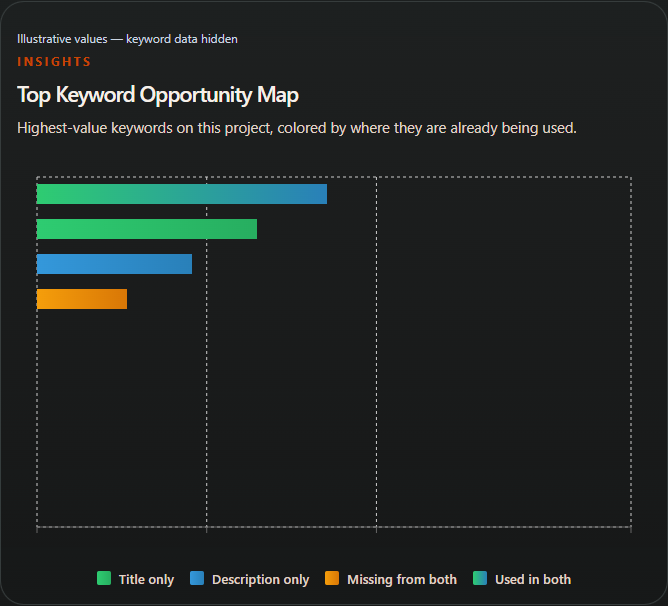
An illustrative example: bar lengths and colors are sample values; keyword names and actual scores are hidden. Keep the tracked set relevant
While you are still in the project's Overview, use a keyword's Active or Paused control and confirm the change to resume or stop its updates when project scheduling is enabled. Per-keyword controls and the project's refresh frequency are separate. An individual keyword must be Active and the video's project scheduler must also be Active for scheduled tracking to update it. Check the displayed next-run and last-run details when assessing freshness.
Pausing a keyword is useful when it no longer matches the video or is no longer worth monitoring. Reactivating it allows future scheduled checks again without requiring you to recreate the video project.
Set a refresh frequency for the video
From the channel's Videos tab, select the video's Edit Scheduler gear. Choose whether scheduled keyword tracking is Active or Paused, and select a supported refresh frequency for active tracking. The Synced channel timing shows the shared run time, weekday, hourly interval and timezone.
Review the reserved-credit change for the new schedule, then choose Save scheduler.
Keyword refresh status
Active
Run scheduled keyword tracking at the chosen frequency for this video.
Paused
Stop scheduled keyword runs for this video until tracking is resumed.
Available refresh frequencies
Hourly
Refresh on the channel's configured hourly interval.
Daily
Refresh once at the channel's configured daily run time.
Weekly
Refresh on the selected weekday and time configured for the channel.
Check shared keywords across the channel
Return to the channel and choose Snapshot. The keyword counter shows how many unique channel keywords are tracked against your plan's maximum. When the same phrase appears in several video projects within the channel, it counts as one shared channel keyword, not one extra keyword for each video. A scheduled refresh of that shared phrase uses one keyword-run credit, not a separate credit multiplied by the number of linked projects. Reserved credits estimate future scheduled runs separately from immediate charges; the amount can change with enabled keywords and scheduling.
Compare the shared keyword summaries, estimated daily demand, Last Run details, and how many video projects link to each phrase. Click a linked-project count to inspect the associated videos. You can pause or reactivate a keyword across its linked projects. The snapshot summarizes the videos you have imported, not every video on the channel. Its keyword counter is for this channel; your overall tracking allowance also depends on active keywords across other channels. If a phrase is paused across all linked projects, it may leave the active Snapshot until reactivated in a video project.
Keyword and Short score

Example Short score: 52, with a 34% change.
Demand and linked videos
The row also shows estimated daily demand and one linked video.
A saved Snapshot example with the keyword hidden. Demand is modeled, and the values reflect this captured run.
Next · Put it to work
Turn tracked opportunities into optimized titles, descriptions, and Shorts
On the video's Overview, Title Opportunities and Description Opportunities highlight tracked phrases and show which are already in your metadata. Check that each phrase fits the video; natural wording matters more than meeting a suggested coverage target.
Open Titles, Descriptions or Shorts to request an output. Title and description generators preselect high-scoring tracked keywords; review the selection and adjust it before checking the cost and generating.
Tracking refreshes keyword information. Generation is a separate request, and you review the result before choosing what to publish. Follow the linked optimization guide for the individual controls.
Create a TrendyTube account
Create an account to organize keyword research around your imported videos.
Create a TrendyTube account