Account & platform guide
Understanding and managing automatic schedules
Automatic schedules keep selected research and video keywords refreshed without starting every run yourself. Learn which work is scheduled, how to choose how often to update, what happens to reserved credits, and how to pause or change future runs.
Before you begin
Know which workspace you are scheduling.
Research Hub refreshes channel research fields. Video Keywords refreshes keyword-demand signals for the videos and keywords you have selected. Both use scheduled times, but their controls and workloads differ.
Part 01 · Put it to work
What is an automatic schedule?
An automatic schedule tells TrendyTube when to start a recurring research or tracking task. Instead of submitting a new request each time, you choose an update frequency and TrendyTube schedules eligible runs in the background. Scheduling saves repeat work, but a run's output depends on the data available and whether processing succeeds.
Research Hub uses a channel's research fields to refresh article and topic-cluster coverage. Video Keywords refreshes the demand information for enabled keywords in the imported videos you chose to monitor. They use separate workspace settings: enabling a Research Hub schedule does not automatically schedule keyword tracking, and vice versa.
Scheduling is not automatic publishing. A research refresh does not upload a YouTube video or create a finished narration for you. Research Hub can also generate ideas on its own schedule; you can request an additional batch or a script when you choose. Keyword refreshes can inform later optimization decisions.
Choose the workflow that matches your goal
Research Hub refresh
Keep article research and clusters current for the selected fields of a reference YouTube channel.
Video Keyword Tracking refresh
Keep keyword opportunity and demand signals updated for individual imported videos and their enabled tracked keywords.
Part 02 · Put it to work
The choices you make affect timing and cost
Frequency controls how often a run is planned. Day and time control when a weekly or daily run is due. Choose your Timezone, then check Upcoming runs to confirm the planned times. Upcoming runs is a preview of planned execution windows, not a promise that all results will appear at that exact minute.
Weekly is useful for topics that change slowly or for a regular editorial check-in. Daily suits consistent monitoring. Hourly (a repeating interval of several hours, where allowed) suits faster-changing topics, but can consume more reserved credits because more runs are planned.
Your plan determines which frequencies and hourly intervals are enabled. If an option is unavailable or the reserve exceeds your credits, choose an allowed slower schedule. Do not assume every account has all hourly intervals.
What the schedule modes mean
Weekly
One planned run each week on the selected weekday and hour.
Daily
One planned run each day at the chosen hour.
Hourly
Recurring runs on the permitted multi-hour interval. Research Hub can also offer auto-spaced or manually selected run hours, depending on the relevant interface.
Off / Paused
No new routine updates are scheduled for that selection; stored research or keywords are not automatically deleted.
Part 03 · Follow the steps
Manage schedules confidently
Choose your schedule
Decide what needs regular updates
Start with the question: What data do I need to revisit automatically? If you want new articles and clusters about a channel's subjects, use Research Hub. If you want to monitor evolving keyword demand for videos you already uploaded or selected, use Video Keywords.
Why this matters: Research Hub schedules work across a channel's active research fields. Video Keywords schedules monitoring on your chosen imported video projects, not every video on a YouTube channel. An update in one workspace does not automatically update the other.
Choose an update frequency that fits the topic
Use Weekly for research or keywords that change slowly, Daily for material you want to review consistently, and Hourly for time-sensitive subjects when your plan supports it. Hourly means a repeating interval, not necessarily a run every single hour: use the available interval choices in your workspace.
Why not always choose the fastest option? More planned runs can require more reserved credits and may return little new information for evergreen topics. Research Hub also offers timing choices such as Auto-spaced run hours and Choose hours for applicable hourly schedules, while Video Keywords uses the channel's shared hourly interval.
Match frequency to your objective
Weekly
A regular research check-in when subjects change gradually.
Daily
A consistent update for an active topic or a video you monitor closely.
Hourly
More frequent monitoring when changes are time-sensitive and your plan and available credits support it.
Set your timezone and check Upcoming runs
Choose your Timezone and the relevant day, run time or interval. The time controls use your selected timezone. Check the Upcoming runs preview to see what your selection actually means, particularly when a chosen time is near midnight and the weekday may differ in UTC.
Why use the preview? It catches mistakes such as scheduling a daily run for the wrong hour or an hourly pattern you did not intend. These are planned start windows, not guarantees that new results will be ready immediately. Review the preview again after changing your timezone or run hours; local daylight-saving transitions can affect how clock times are displayed.
Example: check the timezone and upcoming runs
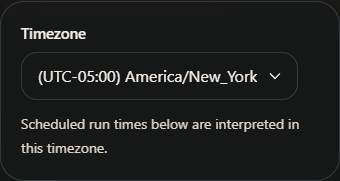
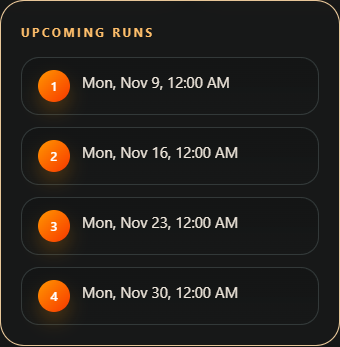
An unsaved example using New York time. Your selected timezone and schedule determine the preview; these are planned starts, not completion times.
Choose specific hours
For an hourly schedule, choose how many runs per day, then select the hours. This example has four selected times.
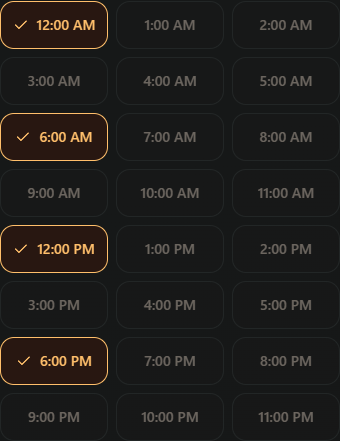
Selected hours are highlighted. When the selection is full, deselect an hour before choosing another.
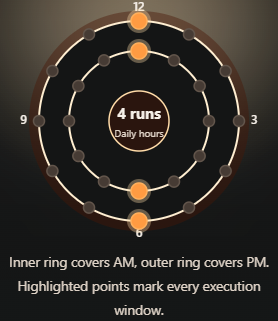
The clock previews the selected times. The inner ring shows AM and the outer ring shows PM.
Examples show unsaved settings; available scheduling options depend on your plan. Know where each schedule is controlled
In Research Hub, open the channel and go to Settings to review and save its research refresh frequency. You can change weekly, daily, hourly or off settings where your plan allows, and see an updated credit reservation preview.
In Video Keywords, open your channel's Videos list, then the target video's Edit Scheduler control to select its frequency or pause it. The channel's shared schedule settings determine the weekday, start time, timezone and hourly interval that video frequencies use. A video can be on Daily while another video from the same channel is Weekly.
Why are the controls separate? Research Hub scheduling is channel-wide for its research workspace. Keyword tracking is chosen video by video, using common channel timing settings; each keyword also has its own Active or Paused tracking control.
Understand the separate per-keyword Active switch
In a Video Keywords project, individual phrases in All Project Keywords can be Active or Paused, independently of the video's scheduler. A keyword receives future scheduled tracking only when its own tracking is enabled and the video project has an active schedule.
When should you pause a keyword? Pause phrases that no longer describe the video or are not useful to monitor. This can reduce future reserved credits. Pausing the whole video scheduler stops regular updates for all its keywords without requiring you to remove those keywords or delete the imported video. Resuming the project alone does not reactivate keywords you paused individually.
Credits and pausing
Read the reserve estimate before saving changes
An active schedule holds credits for future runs expected before your next credit reset. Research Hub's future cost depends on its active research fields, the scheduled timing and the remaining runs. Video Keywords depends on enabled keywords, selected video schedules and the remaining run windows. Both share the same available-credit allowance, so commitments in one workspace affect what is left for the other.
What happens when you change a schedule? A more frequent schedule or additional tracked work may require more Reserved credits; slowing or turning off unused future runs can release them. TrendyTube recalculates reserved credits for the scheduled work, accounting for shared keywords and overlapping update times within a channel. Do not simply multiply each video's displayed estimate to predict the total: the final reservation is based on the combined scheduled work.
Check the Reserved credits amount or reservation change shown on the form before saving. If the change is unaffordable, choose a slower allowed cadence, reduce active fields or keywords, or release other planned work.
Pause or switch off future runs without deleting your work
To stop a Research Hub refresh, select an available Off schedule in the channel's Settings and save it. To pause keyword updates, open an imported video's Edit Scheduler, choose Paused, and save. You can also pause individual tracked keywords without pausing the whole video.
What changes? Newly planned runs stop for the affected selection. The saved channel, videos, keywords and existing results remain available. The unused portion of the future reservation is recalculated and can return to Available; a run already queued or underway may keep its reserved credits until its final cost is confirmed. Used credits for completed work are not refunded merely because you pause.
To resume, select a supported update frequency again, review the new reservation, and save. You must have enough available credits and plan access for the resumed schedule.
Troubleshooting and renewals
Understand late, failed and retried runs
A schedule sets a target start time; the background job may still take time to collect data and update the workspace. If a Research Hub refresh fails, the system can delay it to a retry window and notify you. Video Keyword Tracking also has background retry handling for qualifying failed runs. A missed or delayed result is not proof that a new run completed successfully.
Check the Last run, Next run, task status or notifications shown in the relevant workspace. A keyword without enough history can still show No graph or None after you enable it; adding a phrase does not create past demand data. Likewise, research refreshes depend on new material being available. If failures continue, review your current plan, reserved-credit balance and scheduler status before contacting support.
Recheck scheduling after renewal or plan changes
Scheduled commitments cover the current credit window, not an unlimited series of future months. When the credit period changes, TrendyTube recalculates reservations for upcoming runs in the new period. An active schedule can therefore reserve new-period credits immediately, so Available may start below the total allowance.
When a plan changes or the remaining allowance no longer covers all enabled schedules, TrendyTube checks the new capabilities and budget. If the combined schedule workload no longer fits, it can pause future schedules while preserving existing projects and content. You can return to each workspace, choose allowed frequencies, reduce active workload and resume a schedule once its requirements fit.
Practical habit: After changing subscriptions or adjusting several schedulers, check the Credits popover and the next-run information in both Research Hub and Video Keywords. Do not assume a schedule remains active just because its project still exists.
Help · Common questions
Common questions
Do Research Hub and Video Keywords share the same scheduler?
They both schedule recurring work and use the same overall credit balance, but they run different tasks. Research Hub refreshes research for the channel's active fields. Video Keywords refreshes keyword-demand information for selected imported videos and enabled keywords. Changing one schedule does not automatically configure the other.
Is Hourly always every hour?
No. Hourly is a repeating interval chosen from the intervals your plan supports. For example, an every-four-hours option would plan several runs per day rather than one every hour. Research Hub can also offer auto-spaced or selected run hours depending on the interface.
Why does my daily or weekly run show a different day or time than expected?
The preview uses your selected timezone. Check the timezone, run hour, weekday and Upcoming runs preview together. A run close to midnight can fall on a different UTC date; daylight-saving changes may also affect displays.
Will every Research Hub refresh generate new video ideas or scripts?
No. A refresh processes research content on the chosen schedule, but new articles or clusters depend on what is available. Ideas can also be generated on a separate schedule or requested manually; scripts are requested by you. A scheduled refresh does not automatically publish YouTube content.
Will pausing my schedule refund everything reserved?
Only the reservation for future work that is no longer required can be released. Credits already used for completed runs stay Used; a run already queued or underway may keep its reserved credits until its final cost is confirmed. Review the updated Credits breakdown after saving.
Why are credits still reserved after reducing a video's frequency?
Other videos, keywords, or Research Hub channels may still have active schedules. Some videos share tracked keywords and update times, so their credit reservations are calculated together at the channel level.
Can a schedule be paused automatically if my plan changes?
Yes. TrendyTube checks whether scheduled work still fits your plan and remaining credits. If the combined future workload no longer fits, it can pause scheduled updates without deleting saved projects. Review plan-access messages and choose new allowed schedules before resuming.
Review your active schedules
Open Video Keywords or Research Hub to review the cadence and upcoming runs for the projects you use.
Review your active schedules